
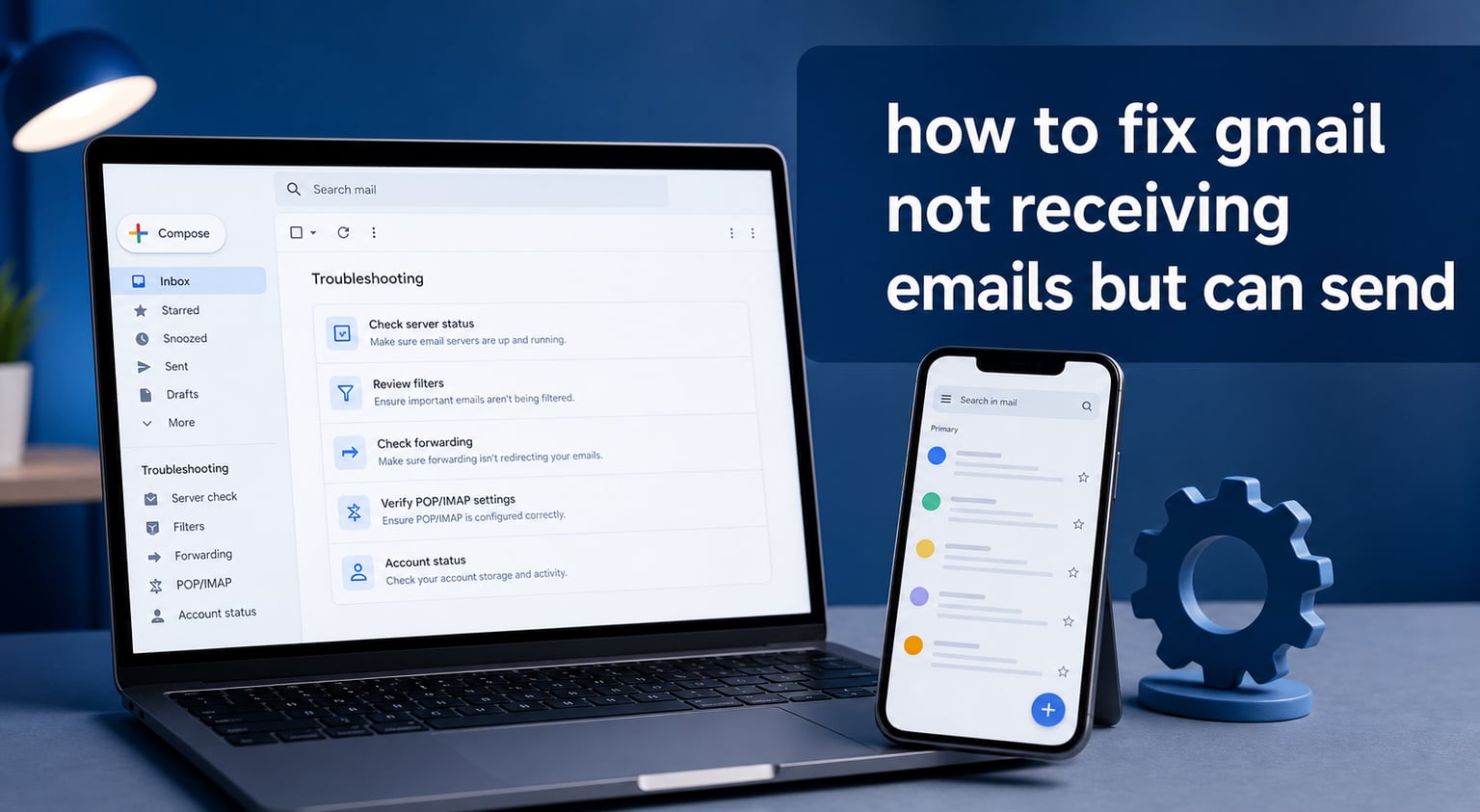
You can send emails from Gmail without any problem, but incoming messages seem to vanish into thin air. If you are wondering how to fix Gmail not receiving emails but can send, you are far from alone. Thousands of users face this exact issue every month, and the good news is that nearly every cause is fixable from your own settings.
Our team has tested and documented every known solution for this problem. The issue usually comes down to one of a handful of causes: a full storage quota, a misconfigured filter, forwarding settings rerouting your messages, or a sync problem on your device. We will walk you through each one step by step.
Missing emails can be stressful, especially when you are waiting for a password reset, a work reply, or a shipping confirmation. By the end of this guide, you will know exactly where to look and what to change to get your inbox working again. Let us start with the fastest fixes first and then move into the deeper settings.
Table of Contents
Quick Fixes to Try First for Gmail Not Receiving Emails
Before diving into complex settings, try these quick checks that resolve the problem for most users within five minutes. These are the solutions that work most often based on our testing and the experiences shared by users across Gmail help forums.
The first thing you should do is check whether Google itself is experiencing an outage. If Gmail servers are down, no amount of settings changes will help. Visit the Google Workspace Status Dashboard to confirm all services are running normally. If you see a green dot next to Gmail, the problem is on your end and you can move to the next step.
Check Your Spam and Trash Folders
This is the single most common reason users think they are not receiving emails. Gmail’s spam filter is aggressive, and legitimate emails sometimes land in the Spam folder without any warning. Open Gmail and look at the left sidebar. If you do not see Spam or Trash listed, click More to expand the full folder list.
Check Spam first. If you find the missing email there, open it and click Report not spam to move it back to your inbox. This also teaches Gmail to deliver future messages from that sender to your inbox. Then check Trash, which holds deleted emails for 30 days before permanently removing them.
Here is a trick most troubleshooting guides miss. Type in:anywhere into the Gmail search bar followed by the sender name or subject you are looking for. This searches every folder at once, including Spam, Trash, All Mail, and any labels you have created. If the email exists anywhere in your account, this search will find it.
Send Yourself a Test Email
Before spending time on deeper troubleshooting, send a test email to your own Gmail address. Compose a new message, type your own address in the To field, and hit send. If the email arrives within a minute or two, your account is receiving emails and the issue may be specific to certain senders.
If the test email never arrives, the problem is confirmed on your end. This test helps you distinguish between a general receiving problem and a sender-specific issue. Knowing this saves you time because it tells you which troubleshooting path to follow.
Sign Out and Sign Back In
It sounds simple, but signing out and back into your Gmail account resolves a surprising number of sync issues. This forces Gmail to re-establish its connection with Google servers and can clear temporary glitches. On desktop, click your profile picture in the top right corner and select Sign out. On mobile, remove the account from your device settings and add it back.
After signing back in, wait a few minutes for your inbox to fully sync. If you are using the Gmail mobile app, this step alone fixes sync problems that were preventing new emails from loading on your phone.
Check Your Gmail Storage Quota
Running out of storage is one of the top reasons Gmail silently stops receiving emails. Every free Google account gets 15 GB of shared storage across Gmail, Google Drive, and Google Photos. When that quota is full, incoming emails get bounced back to the sender and you never see them.
One Reddit user described exactly this experience: “It was the storage. Had to pay for additional storage. Once I did that my emails started coming in again.” This is incredibly common, and many users do not realize their storage is full until emails start disappearing.
How to Check Your Gmail Storage
To check your storage, open Gmail on a computer and scroll to the very bottom of your inbox. You will see a line that says something like “x.xx GB of 15 GB used.” If that number is close to 15 GB, storage is almost certainly your problem. You can also visit the Google One storage page at one.google.com for a detailed breakdown of what is using your space.
Here is something many users do not know. Trash and Spam count against your storage quota. If you have thousands of emails sitting in Trash that you thought were deleted, they are still eating into your 15 GB limit. Emails in Trash auto-delete after 30 days, but if you receive hundreds of emails daily, that backlog can fill your quota fast.
How to Free Up Gmail Storage
Start by emptying your Trash and Spam folders. Open Trash, click the checkbox at the top left to select all emails, then click Delete forever. Do the same for Spam by clicking Delete all spam messages now. This alone can free up significant space if you have not cleared these folders in a while.
Next, search for large emails using the search operator has:attachment larger:10M. This shows every email with attachments over 10 MB. Delete the ones you no longer need, and remember to empty Trash afterward. You can also review Google Drive and Google Photos since they share the same 15 GB quota.
Once your storage drops below the 15 GB limit, new emails will start arriving immediately. There is no need to wait or restart anything. If senders tried to email you while storage was full, ask them to resend those messages because they were bounced and are not stored anywhere on Google’s servers.
Review Filter Settings That May Be Blocking Emails
Gmail filters are powerful automation rules that can sort, label, archive, or delete incoming emails based on criteria you set. If a filter is configured to skip the inbox or delete certain messages, those emails will never appear in your inbox even though Gmail received them successfully.
Filters are often created by accident or set up long ago and forgotten. A filter created months ago might suddenly start catching emails from a new contact or a newsletter you actually want to receive. One user on a Gmail forum reported: “If your filters are not completely nuking emails, they should show up in All Mail.” That is exactly right. Check All Mail first to see if emails are arriving but being archived automatically.
How to Check and Delete Gmail Filters
To review your filters, click the gear icon in the top right corner of Gmail and select See all settings. Navigate to the Filters and Blocked Addresses tab. You will see a list of every active filter in your account.
Look for any filter that says “Skip the Inbox (Archive it)” or “Delete it” in the action column. These are the filters most likely to cause missing emails. If you find one you do not recognize or no longer need, select it and click the Delete button at the bottom of the list.
To verify whether a specific sender is being caught by a filter, use the search bar at the top of Gmail. Type from:[email protected] and check if emails appear in the results but not in your inbox. If they do, a filter is redirecting them.
Check Email Forwarding Settings
Email forwarding can silently redirect your incoming emails to another address without you realizing it. If forwarding is enabled and configured to delete or archive the original copy, you will stop seeing new emails in your inbox even though Gmail is receiving them fine.
This is especially common if someone else set up your Gmail account or if you once used forwarding to consolidate multiple email addresses. It is also worth checking if you suspect your account may have been compromised, since attackers sometimes enable forwarding to intercept your messages.
How to Disable or Review Forwarding
Go to Settings by clicking the gear icon and selecting See all settings. Click the Forwarding and POP/IMAP tab. At the top, you will see whether forwarding is enabled and which email address messages are being sent to.
If you see an address you do not recognize, that is a red flag. Select Disable forwarding and click Save Changes at the bottom. If forwarding is set up intentionally, make sure the option “Keep Gmail’s copy in the inbox” is selected rather than “delete Gmail’s copy” or “mark Gmail’s copy as read.”
After saving, send yourself a test email to confirm messages now arrive in your inbox normally. If the issue persists, move on to checking blocked addresses.
Check Blocked Addresses List
Gmail lets you block specific senders, which sends their emails directly to Spam. If you accidentally blocked someone, their emails will never reach your inbox. This is a common cause of emails from a specific person not coming through while all other emails arrive normally.
To check your blocked addresses, go to Settings and open the Filters and Blocked Addresses tab. Scroll down past your filters to the section titled “The following email addresses are blocked.” You will see a list of every sender you have blocked.
If you find an address that should not be blocked, select it and click Unblock selected addresses. Emails from that sender will now come through to your inbox. Keep in mind that previously blocked emails in Spam will still be there, so you may want to search Spam for any messages you missed.
How to Fix Gmail Not Receiving Emails But Can Send on Mobile
Mobile devices introduce an extra layer of complexity. The Gmail app relies on background sync to fetch new emails, and several settings can interfere with that process. If emails arrive on your computer but not your phone, the issue is specific to your device’s sync configuration.
Check Gmail App Sync Settings
Open the Gmail app on your phone and tap the menu icon (three horizontal lines) in the top left corner. Scroll down and tap Settings. Select your email account and make sure the toggle next to Sync Gmail is turned on.
On Android, also check that Background data is enabled for the Gmail app. Go to your phone’s Settings, tap Apps, find Gmail, and look under Data usage. If background data is restricted, Gmail cannot fetch new emails when the app is closed.
Update the Gmail App
Running an outdated version of the Gmail app can cause sync failures and missing emails. Open the Google Play Store (Android) or App Store (iPhone), search for Gmail, and check if an update is available. If the button says Update, tap it and install the latest version.
After updating, restart your phone and open Gmail. New emails should begin syncing within a minute. If you are still not seeing new messages, try removing your Google account from the phone and adding it back through Settings.
Check Background App Refresh on iPhone
If you are on an iPhone, Gmail needs Background App Refresh enabled to fetch emails when the app is not actively open. Go to Settings, tap General, then Background App Refresh. Make sure it is turned on globally and specifically for the Gmail app.
On both Android and iPhone, if you have enabled any battery saver modes, they can restrict Gmail’s ability to sync in the background. Try disabling battery saver mode temporarily to see if emails start coming through.
Try a Different Browser or Clear Cache
If you access Gmail through a web browser, cache and cookies can cause loading issues that prevent new emails from appearing. This is more common than most people think, and switching browsers is a fast way to test whether the problem is with Gmail or your browser.
Open Gmail in a different browser than your usual one. If you normally use Chrome, try Firefox or Edge. If Gmail loads and shows new emails in the alternate browser, your original browser is the issue. Clearing the cache and cookies in your preferred browser usually resolves the problem.
To clear cache in Chrome, press Ctrl+Shift+Delete (Windows) or Cmd+Shift+Delete (Mac). Select Cached images and files and Cookies and other site data, then click Clear data. Restart the browser and sign back into Gmail.
Browser extensions can also interfere with Gmail. Try opening Gmail in an incognito or private browsing window, which disables extensions. If Gmail works in incognito mode, one of your extensions is causing the problem. Disable extensions one by one to identify the culprit.
POP and IMAP Settings: A Hidden Cause of Missing Emails
If you use a desktop email client like Apple Mail, Outlook, or Thunderbird alongside Gmail, your POP and IMAP settings could be the culprit. POP, in particular, can cause emails to be deleted from Gmail’s server after they are downloaded to your email client.
This is known as the Apple Mail POP deletion issue. If Apple Mail is configured to use POP access and set to delete messages from the server after downloading, your emails vanish from Gmail once they are pulled into the Apple Mail app. The emails exist only on that one device, and Gmail shows nothing.
How to Check POP and IMAP Settings
In Gmail, go to Settings, then the Forwarding and POP/IMAP tab. Under the POP Download section, look at the option selected for “When messages are accessed with POP.” Make sure it is set to “Keep Gmail’s copy in the inbox” rather than “delete Gmail’s copy.”
For most users, IMAP is the better protocol to use with email clients. IMAP syncs emails across all devices rather than downloading and deleting them. Under the IMAP Access section, make sure IMAP is enabled. If you recently switched from POP to IMAP, give it time to fully sync your existing inbox.
Check for Gmail Service Outages
Sometimes the problem is not on your end at all. Google services occasionally experience outages that affect email delivery. Before spending hours troubleshooting settings, check whether Gmail is experiencing a known issue.
Visit the Google Workspace Status Dashboard at google.com/appsstatus. This page shows the real-time status of all Google services. If Gmail has a red or yellow indicator, there is an active issue and you need to wait for Google to resolve it.
You can also check sites like Downdetector to see if other users are reporting Gmail problems. A spike in reports usually confirms a widespread outage. During an outage, emails may be delayed rather than lost entirely. They will typically arrive once the issue is resolved.
Google Workspace Admin: Trace Missing Emails on Business Accounts
If you use Gmail through a business or school Google Workspace account, your administrator has access to tools that can trace exactly what happened to a missing email. This is something personal Gmail accounts cannot do.
The Email Log Search feature in the Google Admin console lets administrators track specific messages. Your admin can search by sender address, recipient address, or date range to see whether an email was delivered, filtered, or rejected by Google’s servers.
How Admins Trace Emails
An administrator signs into the Google Admin console at admin.google.com. They navigate to Reports, then Email Log Search. After entering the sender and recipient email addresses along with a date range, the tool shows a detailed log of what happened to each message.
The log will indicate whether the email was delivered to the inbox, sent to Spam, or rejected entirely. If your business account has custom routing rules or compliance filters set at the organizational level, those can intercept emails before they reach your inbox. Your admin can adjust or disable these rules if they are causing the problem.
If you are a business user and none of the personal troubleshooting steps have worked, ask your IT administrator to run an Email Log Search. This is the fastest way to identify whether the issue is on Google’s side, on your account side, or at the sender’s end.
How to Fix Gmail Not Receiving Emails But Can Send: Quick Reference Checklist
If you want to move fast, here is a condensed checklist of every fix in this guide. Work through them in order, and stop when your emails start arriving.
Step 1: Send a test email to yourself. If it arrives, the issue is sender-specific, not account-wide.
Step 2: Search for missing emails using in:anywhere followed by the sender’s name in the Gmail search bar. This checks every folder at once.
Step 3: Check the Spam folder and Trash folder. If emails are in Spam, mark them as “Not spam.” If they are in Trash, move them back to the inbox.
Step 4: Scroll to the bottom of your Gmail inbox and check if you are near the 15 GB storage limit. If so, empty Trash, empty Spam, and delete large attachments using the search term has:attachment larger:10M.
Step 5: Go to Settings > Filters and Blocked Addresses and look for filters set to “Skip the Inbox” or “Delete it.” Delete any filters you do not need.
Step 6: Go to Settings > Forwarding and POP/IMAP and make sure forwarding is either disabled or set to keep a copy in your inbox.
Step 7: In the same Filters and Blocked Addresses tab, check the blocked addresses list at the bottom and unblock anyone whose emails you want to receive.
Step 8: Check POP download settings under Forwarding and POP/IMAP. Set “When messages are accessed with POP” to keep Gmail’s copy in the inbox.
Step 9: On mobile, make sure Sync Gmail is enabled in the Gmail app settings and that the app is updated to the latest version.
Step 10: Try Gmail in a different browser or in incognito mode to rule out cache and extension issues.
Step 11: Check the Google Workspace Status Dashboard for any active Gmail outages.
Step 12: If you are on a business account, ask your admin to run an Email Log Search in the Google Admin console.
When to Contact Google Support
If you have tried every step in this guide and Gmail is still not receiving emails, it may be time to contact Google support. Personal Gmail users can use the Help button inside Gmail (the question mark icon in the top right) to access troubleshooting tools and contact options.
Google Workspace users have access to 24/7 direct support through the Admin console. If the Email Log Search shows emails being rejected at the server level, support can investigate DNS and MX record issues that are beyond what you can fix in your own settings.
In rare cases, the problem may be on the sender’s side. Their email server might have incorrect DNS records, a blacklisted IP address, or authentication failures that cause Google to reject their messages. If you suspect this, ask the sender to check with their email provider.
FAQs
Why is my Gmail not receiving emails but I can send them?
The most common reasons are a full 15 GB storage quota, aggressive spam filters, misconfigured filter rules, or email forwarding settings redirecting messages away from your inbox. Check your storage first, then review filters and forwarding settings in Gmail.
How do I fix Gmail not receiving emails?
Start by checking Spam and Trash folders, verify your storage is under the 15 GB limit, review filter settings for rules that archive or delete emails, check forwarding settings, and ensure POP access is set to keep copies in the inbox. If using the mobile app, confirm sync is enabled and the app is updated.
How do I check if my Gmail storage is full?
Open Gmail on a computer and scroll to the bottom of your inbox. You will see text showing how much storage you have used out of 15 GB. You can also visit one.google.com for a detailed breakdown. Remember that Trash and Spam count against your storage quota.
How do I stop emails from going to spam in Gmail?
Open the Spam folder, find the email, and click Report not spam. This moves the email to your inbox and teaches Gmail to deliver future emails from that sender correctly. You can also add the sender to your contacts to help ensure their emails reach your inbox.
How do I find missing emails in Gmail?
Type in:anywhere followed by the sender name or subject in the Gmail search bar. This searches every folder including Spam, Trash, All Mail, and labels simultaneously. If the email exists anywhere in your account, this search will find it.
Conclusion: Get Your Gmail Inbox Working Again
Learning how to fix Gmail not receiving emails but can send comes down to checking a handful of settings in the right order. Start with the quick fixes like searching every folder and checking your storage quota. Then move into filters, forwarding, blocked addresses, and POP or IMAP settings if the basic checks do not solve it.
Most users find their answer in the first three steps: Spam folder, storage quota, or a stray filter. The solutions in this guide cover every scenario we have encountered, from personal accounts to business Workspace setups. If none of these fixes work, contact Google support or ask your admin to trace the missing email.
Bookmark this page so you can return to the quick reference checklist the next time emails go missing. Gmail issues can recur if settings get changed or storage fills up again, and having a step-by-step guide saves you time and frustration.