
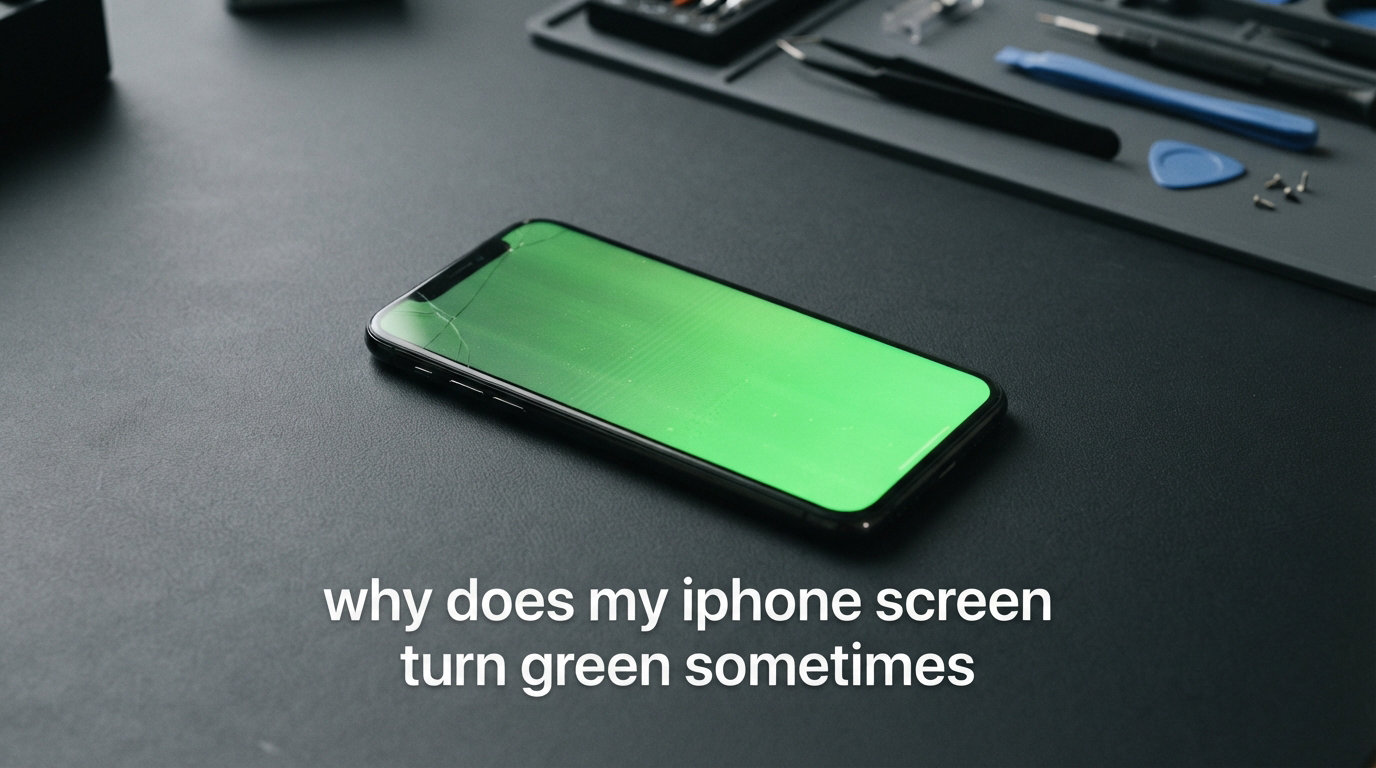
If you are asking, “why does my iPhone screen turn green sometimes,” the short answer is that the display is receiving or producing the wrong color signal. A temporary iOS or display-driver fault can do it, but an OLED or LCD panel fault, a loose internal connection, liquid exposure, or drop damage can cause the same symptom.
The word sometimes matters. A screen that turns green, then returns to normal, may still be a software glitch, yet forum discussions also describe intermittent green tint, flickering, or lines that later become a permanent display failure.
Start with the non-destructive checks below, protect your data before attempting a restore, and pay close attention to what happened just before the iPhone screen changed color. That sequence gives you a much better clue than the color alone.
Table of Contents
Your iPhone screen turns green sometimes because either software or display hardware is misbehaving.
An iPhone green screen is a display malfunction in which the whole panel looks green, green-tinted, or green with flickering and lines. People sometimes call a fully green, unresponsive display the “iPhone green screen of death,” though the label describes a symptom rather than one confirmed cause.
Definition: A software-related green screen happens when iOS, firmware, the display driver, or the graphics system sends a bad image signal. A hardware-related green screen happens when the screen panel, display cable, display IC chip, or a related circuit cannot reproduce colors correctly.
Software is more plausible when the issue starts after an iOS update, appears during one app, or stops after a force restart. Firmware corruption or a temporary graphics process failure can leave the phone running while the display shows the wrong color.
Hardware is more plausible after a drop, bending pressure, liquid or steam exposure, or a sudden change from occasional tint to a solid green screen. OLED screen issues can look different from LCD display problems, but either technology can show a color cast, vertical lines, flashing, or a completely abnormal image when a component fails.
A loose display cable or damaged circuit trace can interrupt the signal between the phone and panel. That is why a phone can still vibrate, receive calls, or make notification sounds while its screen is unusable.
Heat can expose a weakness that was already present. If the green effect occurs after the phone has been hot, while charging, or after intensive use, let it cool at room temperature before deciding that a reset fixed the underlying cause.
Start with these safe green-screen fixes before you erase or open your iPhone.
Work from the least invasive action to the most disruptive one. Do not press on the display, attempt to open the phone, or keep charging it if it is unusually hot, wet, swollen, or smells unusual.
- Step 1: Protect your data if the screen becomes usable. Back up to iCloud or a computer as soon as you can interact with the phone. An intermittent screen gives you a short opportunity to save photos, messages, and other information before troubleshooting becomes more involved.
- Step 2: Disconnect accessories and let the phone cool. Remove nonessential cables or accessories, take off anything trapping heat, and place the iPhone on a dry, hard surface. Do not put a wet or hot phone in a freezer, near direct heat, or in rice.
- Step 3: Force restart the iPhone. A force restart interrupts a stuck system process without selecting an erase option. It is the first useful response when the iPhone screen turned green but the device otherwise seems powered on.
- Step 4: Watch the result after the restart. Note whether the Apple logo and lock screen have normal colors, whether green returns at the same brightness level, and whether it begins after opening a particular app. Repeating conditions point toward the next step.
- Step 5: Install a pending iOS update if the screen remains readable. Go to Settings, then General, then Software Update, and use a stable connection and adequate battery power. An update can correct a software defect, but it cannot repair a damaged screen panel.
Tip: If the display becomes readable only briefly, back up first and record a short video of the flicker or green tint with another device. A recording of an intermittent fault can make a repair appointment more productive.
A force restart clears a stuck display process without deleting your content.
Use the button sequence that matches your iPhone family, then release the buttons when the Apple logo appears. Keep the phone connected to power only if it is dry, cool, and the cable and port show no sign of damage.
- iPhone 8, iPhone SE (2nd generation or later), and later: Quickly press and release Volume Up. Quickly press and release Volume Down. Then hold the Side button until the Apple logo appears.
- iPhone 7 and iPhone 7 Plus: Hold the Side button and Volume Down button together until the Apple logo appears.
- iPhone 6s, iPhone SE (1st generation), and earlier: Hold the Home button and Side button, or Top button, together until the Apple logo appears.
If the display is solid green but the phone restarts, wait a minute after the logo before judging the result. A slow return to the lock screen can be normal after a restart; persistent green, flashing, or vertical lines are not a reason to keep repeating the buttons for hours.
A settings check can expose brightness, update, and heat-related triggers.
When you can use the display, lower brightness temporarily and turn off Auto-Brightness only as a short test. If the tint changes sharply with brightness, that observation is useful for a technician because it can involve how the panel controls pixel brightness.
Check Settings, then Battery, then Battery Health & Charging for service messages, and check whether the phone felt hot before the iPhone screen glitch began. Battery health does not diagnose a green screen by itself, but heat and power-related warnings add context.
Also look for a pattern around one app, a video, a lock-screen wake, charging, or an iOS update. Do not assume that the last app you used caused the issue; the timing is a clue, not proof.
Warning: If you see a raised screen, a swollen enclosure, smoke, leaking fluid, or extreme heat, stop using and charging the iPhone. Seek service rather than continuing software troubleshooting.
Recovery Mode can reinstall iOS when a force restart and update do not stop the green screen.
Recovery Mode lets a Mac or Windows computer offer an iOS update or restore when the phone cannot complete startup normally. Choose the update option first when it is available because it attempts to reinstall iOS without erasing content, though no repair method can promise that data will remain intact.
Use a current computer connection, open Finder on a Mac or iTunes on a Windows PC, and connect the iPhone with a working cable. Start the same button sequence used for a force restart, but continue holding the final button until the recovery screen appears instead of releasing at the Apple logo.
- Step 1: Put the iPhone in Recovery Mode. For iPhone 8 and later, press Volume Up, press Volume Down, then hold the Side button until the recovery screen appears. For iPhone 7 and 7 Plus, hold Side and Volume Down; for iPhone 6s and earlier, hold Home and Side or Top.
- Step 2: Select Update on the computer first. Let the computer download and reinstall iOS. If the download takes long enough that the phone leaves recovery mode, repeat the entry sequence and try again.
- Step 3: Test before restoring. If Update finishes and colors return to normal, use the phone carefully and back up right away. If the screen remains green or recovery fails repeatedly, a restore or professional diagnosis is the next decision.
A restore removes the iPhone’s content and installs iOS again. Only choose it after you have a backup or understand that the data may be lost; it is a software test, not a physical screen repair.
DFU Mode is a deeper restore option, but it should not be the first response to a green display.
Device Firmware Update, commonly called DFU Mode, can reinstall lower-level firmware as well as iOS. It is useful when ordinary recovery repeatedly fails and you have ruled out immediate safety concerns, but it will erase the device and a green screen can make timing difficult.
For iPhone 8 and later, connect to a computer, quickly press Volume Up, quickly press Volume Down, then hold the Side button until the display goes black. Hold Side and Volume Down together briefly, release Side while continuing to hold Volume Down, and wait for the computer to detect an iPhone in recovery; the screen should remain black in DFU Mode.
If the Apple logo or recovery-cable screen appears, the phone is not in DFU Mode and you can start again. Because button timing differs by model and an incorrect sequence does not solve hardware failure, I would use Recovery Mode first and get support before repeated DFU attempts.
Warning: A DFU restore is destructive. Do not choose it merely because the phrase “green screen of death” sounds urgent, and do not attempt it when liquid damage or a swollen battery is suspected.
A software pattern is usually repeatable, while a hardware pattern often follows damage or worsens over time.
The most practical question is not “is this definitely software or hardware?” from one glance. Instead, look for several signals and see which group fits your iPhone display problems.
A software-related green screen often follows an update or clears after a restart.
- The tint began soon after an iOS update and the phone otherwise behaves normally.
- The screen returns to normal after a force restart, a normal restart, or an iOS update.
- The issue appears in one app, after a specific on-screen action, or only briefly during startup.
- No drop, pressure event, moisture, steam exposure, or prior display repair happened near the first symptom.
Even this group is not conclusive. If the same green screen comes back after a clean iOS reinstall, the software explanation becomes less convincing and an Apple Diagnostics or hands-on inspection becomes more useful.
A hardware-related green screen often includes flickering, lines, or a link to damage.
- The iPhone screen turned green after a drop, impact, bending pressure, water exposure, or hot steam.
- Green vertical lines, a partial green area, touch problems, or flickering appeared before the full green screen.
- The phone works through sounds or vibration, but the display stays green across the lock screen and startup screen.
- The problem becomes more frequent, lasts longer, or returns despite updating or restoring iOS.
Those signs can indicate an OLED panel fault, an LCD display fault, a damaged display cable, or an IC chip or board-level issue. A repair provider needs to diagnose the actual failed part; a reset cannot reconnect a damaged trace or reverse corrosion.
Community reports are useful for spotting patterns, not for confirming a repair. People commonly describe an iPhone screen flickering green for days or weeks before it stays green, which is a good reason to back up rather than waiting for the next episode.
The iPhone 13 Pro and Pro Max reports often center on intermittent green tint and the 120Hz display setting.
Forum conversations frequently single out iPhone 13 Pro and iPhone 13 Pro Max devices, with users connecting a green tint or full green screen to their 120Hz display behavior. That observation does not mean every iPhone 13 green screen has one cause, nor does it rule out damage, moisture, or a panel failure.
If you have an affected Pro model and the phone remains usable, record the conditions: refresh behavior, brightness, battery level, temperature, whether an update just occurred, and whether the screen changes at the lock screen. Share those details with Apple Support or an Apple Authorized Service Provider rather than relying on a forum diagnosis alone.
Older OLED-equipped iPhones, including iPhone 12 models, can also show green tint, and iPhone 14 users can encounter display faults for their own reasons. Model discussion helps narrow questions, but the symptom pattern and device history matter more than a model label.
Water, steam, heat, and drops can turn a temporary green screen into a repair issue.
Water resistance is not a guarantee that a phone is safe after moisture exposure. Steam can condense in places that are hard to inspect, and liquid damage can corrode circuits or interfere with display connections over time.
If the iPhone screen turned green after a bath, hot tub, rain, spill, or humid steam, disconnect charging accessories and let the device dry in a well-ventilated room. Do not insert objects into the port or use external heat to speed drying.
A drop matters even when the front glass looks perfect. Internal connectors and display layers can be damaged without a visible crack, especially if a green line, flicker, or touch issue follows the impact.
Temperature is another useful clue. A display that only goes green while hot may recover after cooling, but repeated heat-linked behavior still deserves a backup and a service check because it may reveal an existing weakness.
Professional support is the right next step when the green screen survives the basic software checks.
Contact Apple Support or an Apple Authorized Service Provider when the screen remains green after a force restart, occurs again after an iOS update or recovery update, follows a drop or moisture event, shows lines or flickering, or prevents you from using the phone. Tell them whether the phone still rings, vibrates, charges, or responds to touch, because those details help separate a display fault from a broader startup problem.
Bring a backup if possible and describe the sequence in plain terms: “the display turns green at low brightness,” “it started after a drop,” or “green lines appeared first.” A video from another device is especially helpful for a fault that disappears before the appointment.
Apple Diagnostics can help identify some hardware concerns, but an inconclusive result does not prove that a display is healthy. A technician may need to inspect the panel and its connections when the evidence points to hardware.
You can reduce future display trouble by controlling heat, moisture, impacts, and backup risk.
- Keep iOS current after reviewing the update and back up before major changes.
- Avoid charging or heavy use where the phone is excessively hot, and let it cool naturally if it overheats.
- Keep the iPhone away from steam, spills, and damp charging ports, even if it has water-resistance features.
- Use sensible physical protection and avoid placing the phone where it can bend or be crushed.
- Maintain regular iCloud or computer backups so an abrupt display failure does not also become a data-loss event.
Prevention cannot stop every OLED screen issue or random firmware fault. It does give you the best chance of catching an intermittent problem while you can still access the phone and your data.
These direct answers cover the most common iPhone green-screen questions.
How to fix the green screen of death?
Force restart the iPhone first, then back it up if the display returns. Install any pending iOS update, use Recovery Mode and select Update if the problem persists, and seek professional service if green returns after those checks or follows damage or moisture.
Is a green phone screen a common problem?
A green screen is a known display symptom rather than a normal iPhone behavior. It can come from a temporary software or firmware issue, but it can also signal a failing OLED or LCD panel, display connection, or damage-related fault.
How to get rid of a green screen on an iPhone?
Start with the correct force-restart buttons for your model. If the screen returns, back up, update iOS, and watch for a repeat trigger; if it stays green, use Recovery Mode with a computer or arrange service rather than opening the phone yourself.
What is the green screen of death on iPhone?
The phrase describes an iPhone display that turns fully green and may be hard to use. It is not a single official diagnosis: software faults, display-driver problems, panel failure, loose connections, liquid damage, and physical damage can all create the symptom.
Why does my iPhone screen randomly turn green?
Random green flashes can be a temporary iOS or display-driver problem, especially after an update, but a repeating issue can also be early hardware failure. Green lines, flickering, a link to drops or steam, and recurrence after a restore make a hardware check more important.
Can you tell if someone is remotely accessing your iPhone?
A green screen alone is not evidence of remote access. Check unfamiliar devices under your Apple Account settings, review installed profiles and apps, change your Apple Account password if you suspect account compromise, and contact Apple Support if you need help securing the account.
Why did my phone screen suddenly turn green?
A sudden green screen can happen when a display signal fails because of a software crash, firmware issue, panel fault, loose connection, impact, moisture, or heat. Force restart first; if the symptom continues or follows damage, arrange professional diagnosis.
A green iPhone screen is fixable in some cases, but repeating symptoms need a careful response.
Why does my iPhone screen turn green sometimes? Begin with a force restart, backup, and iOS update or Recovery Mode when the evidence suggests software. Treat recurring tint, flickering, green lines, heat-related behavior, and any connection to drops or moisture as a reason to get a professional display diagnosis.
Act while the phone still works intermittently. A safe backup and a clear record of the trigger are the two most useful things you can bring to the next step.