
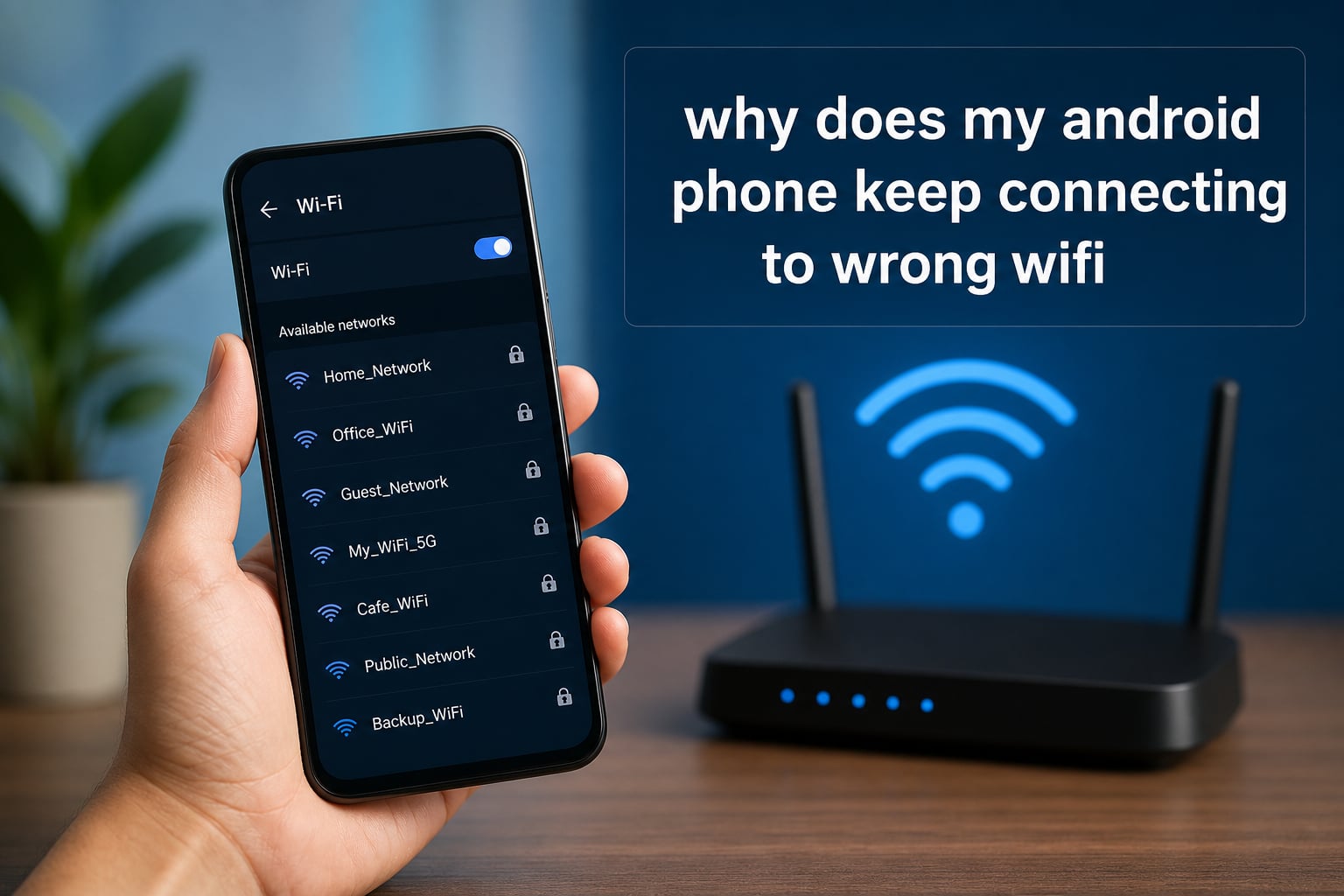
Your Android phone keeps connecting to the wrong WiFi because it has multiple saved networks and the device’s auto-reconnect feature latches onto whichever saved network has the strongest signal at that moment. Android does not always respect your preferred network order, especially when two saved networks overlap in range.
This is one of the most frustrating WiFi problems Android users face. You walk through your front door expecting your phone to connect to your fast 5GHz home network, but instead it grabs the slower 2.4GHz band or even your neighbor’s open network you connected to once six months ago.
I have dealt with this issue across multiple Android devices, from Samsung Galaxy phones to Google Pixels. After digging through dozens of Reddit threads, Android Stack Exchange posts, and Google’s own support documentation, I found that the root cause comes down to how Android handles WiFi priority, auto-reconnect settings, and signal strength.
In this guide, I will walk you through exactly why this happens and give you step-by-step fixes you can apply right now. We will start with the quick solutions that solve the problem in under two minutes, then move to more advanced fixes if those do not work.
Table of Contents
Why Does My Android Phone Keep Connecting to Wrong WiFi?
Android phones connect to the wrong WiFi network because of how the operating system manages saved networks, signal strength, and auto-reconnect behavior. When you save a WiFi network on your phone, Android stores its SSID (network name), password, and security type. The next time that network is in range, your phone tries to connect automatically.
The problem starts when you have multiple saved networks in the same area. Maybe you have a 2.4GHz network and a 5GHz network from the same router, each with a different SSID. Or perhaps you have your home network and a guest network both saved. Android uses a priority system to decide which network to join, but that system is far from perfect.
Here is what happens behind the scenes. Android assigns a priority score to each saved network based on factors like signal strength, the type of security used (WPA3 ranks higher than WPA2), and whether the network has provided a stable internet connection in the past. When multiple saved networks are available, the phone picks the one with the highest combined score.
The issue is that signal strength often outweighs your actual preference. If your slower network has a marginally stronger signal in a particular room, Android may connect to it even though you clearly want the faster one. This is the core reason why your phone keeps connecting to the wrong WiFi.
Several specific factors make this worse:
Auto-reconnect is enabled by default for every network you save. This means Android actively tries to join any saved network it detects, regardless of whether you actually want to use it right now. A Reddit user with an ROG Phone 5s reported having auto-connect turned off for their slow network, yet the phone still connected to it. This happens because some Android versions and manufacturer skins handle the auto-reconnect toggle inconsistently.
Dual-band routers create confusion. If your router broadcasts both 2.4GHz and 5GHz with different names, your phone may switch between them based on signal strength. Since 2.4GHz signals travel farther and penetrate walls better, the phone often sees the 2.4GHz network as having a stronger signal and connects to it, even though 5GHz would be much faster.
Saved network buildup over time. Every hotel, coffee shop, and friend’s house network you connect to gets saved. When those networks happen to be in range again, your phone may connect to them instead of your preferred network. I have seen phones with over 50 saved networks, which makes the priority selection even more chaotic.
Software updates can change behavior. Android updates sometimes modify how the WiFi priority system works. Multiple users on Reddit reported that their WiFi behavior changed completely after a system update, with phones suddenly connecting to networks they had previously deprioritized.
Quick Fixes to Try First
Before diving into advanced troubleshooting, try these quick fixes. They solve the wrong WiFi connection problem about 70 percent of the time, and each one takes less than two minutes.
1. Toggle WiFi Off and On
This is the simplest fix, and it works more often than you would expect. Turning WiFi off and back on forces Android to rescan available networks and re-evaluate which one to connect to.
Swipe down from the top of your screen to open Quick Settings. Tap the WiFi icon to turn it off. Wait about five seconds, then tap it again to turn it back on. Your phone will scan for networks and may connect to the correct one this time.
If your phone connects to the wrong network again immediately, do not worry. This just means the quick toggle is not enough and you need to move to the next fix.
2. Restart Your Android Phone
A full restart clears temporary network state data and gives Android a fresh start with WiFi selection. This fix is especially effective if your phone has been running for several days without a reboot.
Press and hold the power button, then select Restart (or Reboot on some devices). Wait for the phone to fully boot back up, then check which WiFi network it connects to. A restart resolves priority conflicts that build up over time in the network manager service.
3. Toggle Airplane Mode
Airplane mode disables all wireless connections at once, including WiFi, cellular, and Bluetooth. Toggling it forces Android to re-establish every wireless connection from scratch.
Swipe down to open Quick Settings and tap the airplane icon. Wait ten seconds, then tap it again to turn Airplane mode off. Your phone will reconnect to cellular service first, then evaluate WiFi networks. This method works because it clears the radio state completely, unlike just toggling WiFi.
4. Turn Off Bluetooth Temporarily
Bluetooth and WiFi share the same 2.4GHz frequency band. In some cases, active Bluetooth connections can interfere with WiFi network selection, especially if you have Bluetooth devices that also broadcast WiFi signals or use WiFi Direct.
Turn off Bluetooth from Quick Settings for a few minutes to see if your phone connects to the correct WiFi network. If this fixes the issue, the interference was the culprit, and you can turn Bluetooth back on afterward.
How to Stop Android from Connecting to Wrong WiFi Network
The most effective way to stop your Android phone from connecting to the wrong WiFi is to disable auto-reconnect for that specific network or forget it entirely. This section covers both approaches in detail.
Disable Auto-Reconnect for Specific Networks
Android lets you control auto-reconnect on a per-network basis. This means you can keep a network saved (so you can manually connect when needed) while preventing your phone from automatically joining it.
Here is how to do it:
Step 1: Open Settings on your Android phone and tap on Network and Internet (or Connections on Samsung devices).
Step 2: Tap on WiFi, then tap the gear icon next to the network you want to stop auto-connecting to.
Step 3: Look for an option labeled Auto-connect, Auto-reconnect, or Connect automatically. Toggle it off.
Step 4: Repeat this for any other networks you do not want your phone to join automatically.
On Samsung phones running One UI, the toggle is usually right in the network details page. On Google Pixels, you may need to tap Advanced after selecting the network to find the auto-connect option.
Note that on some Android versions, the auto-reconnect toggle may not work as expected. This is the exact issue reported by the ROG Phone 5s user on Reddit. If turning off auto-connect does not solve the problem, you need to take the next step and forget the network entirely.
Forget the Wrong Network Completely
If disabling auto-reconnect does not work, the nuclear option is to forget the network. This removes the network, its password, and all associated settings from your phone. Your phone will no longer attempt to connect to it automatically.
Step 1: Go to Settings > Network and Internet > WiFi (or Settings > Connections > WiFi on Samsung).
Step 2: Find the network you want to remove. On some devices, you need to tap Saved Networks to see networks that are saved but not currently in range.
Step 3: Tap the gear icon next to the network name.
Step 4: Tap Forget (or Forget Network on some devices).
Step 5: Confirm by tapping Forget again.
Once you forget a network, your phone will never connect to it automatically again. If you need to use that network in the future, you will have to enter the password manually. For networks like a neighbor’s WiFi or a coffee shop you visited once, this is the cleanest solution.
Manage Saved Network Priority
Android used to have an explicit WiFi priority setting where you could assign numbers to networks, but that feature has been removed in recent versions. Modern Android handles priority automatically based on signal strength and connection history.
However, you can influence the priority by doing the following:
Forget all networks except the one you want your phone to always connect to first. Then reconnect to secondary networks manually only when needed. With fewer saved networks competing for connection, your phone has a much simpler decision and is far more likely to pick the right one.
Some Samsung devices running One UI still offer limited priority controls. Go to Settings > Connections > WiFi > Advanced > WiFi control history to see which apps and services are managing your WiFi connections. Disabling apps that auto-connect to networks can help reduce unwanted connections.
Forget and Reconnect to the Correct Network
If your phone keeps connecting to the wrong WiFi, sometimes the issue is not with the wrong network but with how your phone stores the connection details for the right one. Forgetting and reconnecting to your preferred network can fix corrupted network data.
Here is the complete process:
Step 1: Go to your WiFi settings and find your preferred network.
Step 2: Tap the gear icon next to it, then tap Forget.
Step 3: Wait a moment for the network to disappear from your saved list.
Step 4: Find the network in the available networks list and tap it.
Step 5: Enter the password carefully. Double-check every character, especially if your password has special characters that might be autocorrected or mistyped.
Step 6: Make sure Auto-connect is enabled for this specific network. This ensures your phone prioritizes it going forward.
This approach works well when the problem started after a password change on your router. Your phone may have been trying to connect with the old password, failing, and then falling back to a different saved network.
I have also seen cases where the issue was a mismatched security protocol. If your router was recently updated from WPA2 to WPA3, your phone might be trying to authenticate with the wrong protocol. Forgetting and reconnecting forces Android to detect the current security type automatically.
Check WiFi Password and Network Settings
Sometimes the wrong WiFi connection problem is actually a password or network configuration issue in disguise. Your phone may be trying to connect to the correct network, failing due to an authentication problem, and then falling back to a different saved network.
The “Incorrect Password” Error When Your Password Is Correct
This is a surprisingly common problem reported by Samsung Galaxy S21 and S22 users. You enter the correct WiFi password, but Android says it is incorrect. The phone then connects to a different network or refuses to connect at all.
The fix that works for many users involves switching from DHCP to a static IP address:
Step 1: Go to Settings > WiFi and tap the gear icon on your network.
Step 2: Tap Advanced or IP settings.
Step 3: Change IP settings from DHCP to Static.
Step 4: Enter an IP address within your router’s range (for example, 192.168.1.100 if your router uses the 192.168.1.x range).
Step 5: Set the Gateway to your router’s IP address (usually 192.168.1.1 or 192.168.0.1).
Step 6: Set DNS 1 to your router’s IP address or use a public DNS like 8.8.8.8 (Google) or 1.1.1.1 (Cloudflare).
Multiple Samsung users confirmed this fix on Reddit. The DHCP-to-static-IP switch forces the phone to authenticate properly with the router, bypassing whatever DHCP negotiation was causing the password rejection.
Check for DNS Configuration Issues
If your phone connects to the correct network but has no internet, a DNS issue might be the culprit. Private DNS settings on Android can interfere with network connectivity and cause your phone to behave erratically with WiFi connections.
Go to Settings > Network and Internet > Private DNS. If it is set to a custom DNS hostname, try changing it to Automatic or Off. A misconfigured Private DNS setting can cause Android to think a network has no internet, prompting it to switch to a different saved network that does work.
2.4GHz vs 5GHz: Dual-Band Network Confusion
One of the most common reasons your Android phone connects to the wrong WiFi is dual-band router confusion. Modern routers broadcast on two frequency bands, and each band behaves very differently in terms of range, speed, and how your phone selects between them.
Why Your Phone Picks the Wrong Band
Here is the core difference between the two bands:
2.4GHz travels farther and penetrates walls and obstacles better. It has a longer effective range but slower maximum speeds. It is also more congested because many devices use this frequency, including microwaves, Bluetooth devices, and your neighbors’ routers.
5GHz delivers much faster speeds but has a shorter range and struggles with walls and physical obstacles. It is less congested, making it ideal for high-bandwidth activities like streaming and video calls.
Android’s WiFi selection algorithm often sees the 2.4GHz network as having a stronger signal. This is especially true in homes where the router is in another room or on a different floor. The phone picks the network with the strongest signal, even though the 5GHz network would give you much better performance.
How to Fix Band Selection Issues
The simplest fix is to use band steering on your router. Band steering combines both bands under a single SSID, letting the router decide which band to assign to each device. Most modern routers support this feature in their settings.
If your router does not support band steering, or if you prefer separate SSIDs, try these approaches:
Forget the 2.4GHz network so your phone can only automatically connect to the 5GHz network. You can always reconnect manually if you move out of 5GHz range.
Disable auto-connect for the 2.4GHz network. This keeps the network saved for manual use but prevents automatic connections. Your phone will default to 5GHz whenever it is available.
Move closer to your router. If the 5GHz signal reaches the area where you use your phone most, the band selection issue becomes irrelevant. Consider a WiFi extender or mesh system if you need 5GHz coverage throughout your home.
Reset Network Settings on Android
If none of the previous fixes have worked, resetting your network settings is the next step. This clears all saved WiFi networks, Bluetooth pairings, cellular settings, and VPN configurations from your phone. It is a clean slate for your network configuration.
Before you proceed, make sure you know your primary WiFi password because you will need to re-enter it after the reset.
Here is how to reset network settings on most Android phones:
Step 1: Open Settings and scroll to System (or General Management on Samsung).
Step 2: Tap Reset options (or Reset).
Step 3: Select Reset Wi-Fi, mobile and Bluetooth (or Reset network settings).
Step 4: Confirm by tapping Reset settings.
Step 5: Enter your PIN, password, or pattern if prompted.
After the reset, your phone will restart with clean network settings. You will need to reconnect to your WiFi network by entering the password. Only save the networks you actually use regularly to prevent the wrong network problem from recurring.
Some users on Reddit reported that a network settings reset temporarily fixed the problem but it returned after a few weeks. This usually means there is an underlying software bug in your Android version. In that case, check for system updates or consider a factory reset as a last resort.
Update Android and Router Firmware
Software bugs are a frequent cause of WiFi connection problems. Both your Android phone and your router need regular updates to fix known issues and improve network handling.
Check for Android System Updates
Go to Settings > System > System update (or Settings > Software update on Samsung). Tap Check for updates. If an update is available, download and install it.
Android updates frequently include fixes for WiFi connectivity bugs. If your wrong WiFi problem started after a recent update, a subsequent patch may have been released to address it. Forum users on Reddit reported that WiFi broke completely for some devices after certain Android updates, and the fix came in the form of a follow-up patch.
After installing an update, restart your phone even if it does not prompt you to. This ensures all network services start fresh with the new software.
Update Your Router Firmware
Router firmware updates are just as important as phone updates. Router manufacturers release firmware patches to fix connectivity issues, improve device compatibility, and patch security vulnerabilities.
Open a web browser on a device connected to your router and type your router’s IP address (usually 192.168.1.1 or 192.168.0.1) into the address bar. Log in with your admin credentials. Look for a Firmware Update, Software Update, or similar section in the router’s settings.
The exact steps vary by router brand. Check your router manufacturer’s website for specific instructions if you cannot find the update option.
After updating the firmware, restart your router by unplugging it for 30 seconds and plugging it back in. Then reconnect your phone and see if the wrong network problem is resolved.
When to Contact ISP or Device Support
If you have tried every fix in this guide and your Android phone still connects to the wrong WiFi, it is time to determine whether the problem is with your device, your router, or your internet service.
Multiple Devices Affected: Contact Your ISP
If other phones, tablets, and computers in your home are also experiencing WiFi problems, the issue is likely with your router or your internet service provider. Contact your ISP’s technical support line and describe the problem.
Ask your ISP to check for line issues, signal degradation, or outages in your area. They can also remotely reset your modem and check its health status. If your router is provided by the ISP, they may offer to send a replacement if the hardware is faulty.
Single Device Affected: Contact Device Support
If only your Android phone is connecting to the wrong network while other devices work perfectly, the problem is specific to your device. Contact your phone manufacturer’s support:
For Samsung devices, use the Samsung Members app or visit Samsung’s support website. For Google Pixel, use the support chat in Settings or visit the Pixel help center. For other brands, check the manufacturer’s website for support options.
When you contact support, tell them specifically which fixes you have already tried. Mention that you have reset network settings, forgotten and reconnected to networks, and checked for software updates. This saves time and helps the support agent focus on advanced troubleshooting.
Consider a Factory Reset as Last Resort
If device support cannot resolve the issue and you are still experiencing the problem, a factory reset may be necessary. This erases everything on your phone, so back up your data first. A factory reset clears deep software corruption that network settings resets cannot reach.
Go to Settings > System > Reset options > Erase all data (factory reset). After the reset, set up your phone and connect only to your preferred WiFi network. Do not restore all saved networks from a backup, as this may reintroduce the problem.
FAQs
How to fix Wi-Fi problem on Android phone?
To fix Wi-Fi problems on Android, start by toggling Wi-Fi off and on, restarting your phone, and toggling Airplane mode. If that does not work, forget and reconnect to your network, check your password, and reset network settings in System u0026gt; Reset options. Updating your Android software and router firmware can also resolve persistent connectivity issues.
Why does my phone keep randomly connecting to Wi-Fi?
Your phone keeps randomly connecting to Wi-Fi because auto-reconnect is enabled for saved networks. Android automatically joins any saved network in range, prioritizing signal strength. To stop this, go to Wi-Fi settings, tap the network, and disable auto-connect or forget networks you do not want to join automatically.
How do I stop my Wi-Fi from automatically connecting to other networks?
To stop automatic connections, go to Settings u0026gt; Wi-Fi, tap the gear icon next to the network, and toggle off Auto-connect or Connect automatically. For a permanent fix, tap Forget to remove the network entirely. This prevents your phone from joining that network unless you manually connect and enter the password.
Why does my phone connect to 2.4GHz instead of 5GHz?
Your phone connects to 2.4GHz instead of 5GHz because the 2.4GHz signal has a longer range and penetrates walls better, so Android detects it as having stronger signal strength. To fix this, forget the 2.4GHz network, disable its auto-connect, or enable band steering on your router to combine both bands under one name.
Conclusion
When your Android phone keeps connecting to the wrong WiFi, the root cause is almost always a combination of saved network clutter, auto-reconnect behavior, and signal strength-based selection that does not match your preferences. The fixes range from simple two-minute toggles to full network settings resets.
Start with the quick fixes — toggle WiFi, restart your phone, try Airplane mode. If those do not solve it, disable auto-reconnect for the unwanted network or forget it entirely. For dual-band issues, managing your 2.4GHz and 5GHz network settings will stop the band-hopping behavior. And if nothing else works, a network settings reset followed by connecting only to your preferred network gives you a clean slate.
Remember that understanding why your Android phone keeps connecting to the wrong WiFi is half the battle. Once you know how Android’s network priority system works, you can configure your saved networks to match your actual usage and stop the frustrating wrong connections for good.