
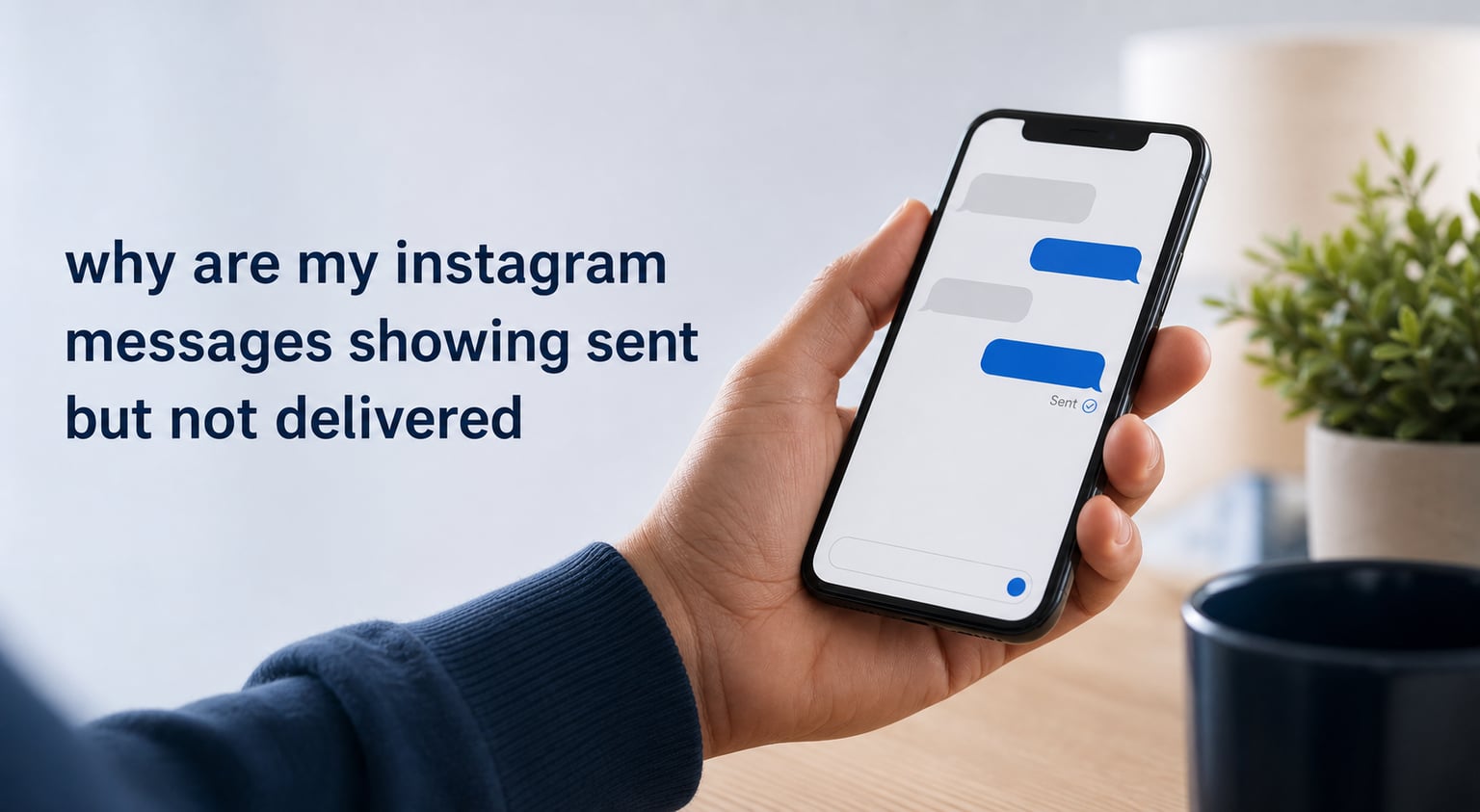
If your Instagram messages are sent but not delivered, the simplest explanation is that Instagram accepted the message from your device but has not confirmed it reached the other person’s inbox. That can happen because of a temporary app or service problem, the recipient’s message settings, or a restriction; the status by itself does not prove you were blocked.
I know this feels personal when it happens in one chat, especially if the other person is usually active. Start by treating it as a delivery diagnosis rather than a verdict: check whether the problem affects every conversation, every message type, or only one account.
This guide explains why Instagram messages show sent but not delivered, what the labels normally mean, and which fixes are worth trying first. It also covers the Android and iPhone steps that help when an Instagram DM is stuck on sent.
Quick answer: “Sent” means Instagram received the outgoing message from you. “Delivered” is the next confirmation, and an absent delivery confirmation can be caused by an app sync problem, a service interruption, the recipient’s inbox rules, or a restriction.
Table of Contents
Instagram messages showing sent but not delivered usually mean delivery is still unconfirmed
Instagram’s status labels are easy to overread. They describe stages in the message path, not the other person’s intentions, online status, or willingness to answer.
Sent means Instagram accepted your outgoing message
When a DM shows as sent, your app has passed the text, photo, Reel, sticker, or voice note to Instagram. It is not the same as proof that the recipient has opened Instagram, received a notification, or read the chat.
Delivered means the message reached the recipient’s inbox path
Delivered is a stronger confirmation than sent, but it still is not a reply. Depending on the conversation, privacy settings, and Instagram’s current interface, you may see a delivery signal differently or not see a separate label at all.
Seen means the recipient opened the message or conversation
Seen is a read indicator, not a delivery indicator. A person can receive a message and never open it, or turn off read receipts where that option is available, so no “seen” status is not evidence of a messaging failure.
Message requests can change where a DM appears
Messages from people the recipient does not follow may land in Message Requests rather than the main inbox. A restriction can also move a conversation into requests, which is why a message may appear sent on your side without behaving like a normal inbox chat.
Important: Instagram does not provide a reliable, single status that tells you “this person blocked you.” Do not make a block claim from sent, delivered, seen, or activity indicators alone.
Several common causes can leave an Instagram DM stuck on sent
The fastest clue is the scope of the issue. If no chats work, look first at your connection, Instagram’s service, or your app; if one person is affected, recipient-side settings, a restriction, or a block become more plausible.
A service outage or delayed sync can affect message delivery
Instagram can have a temporary server or sync issue even while the feed still refreshes. Check a reputable outage-status service and recent reports from other users before changing your account, then wait and try again later if reports show a wider problem.
A weak or filtered connection can interrupt direct messages
Wi-Fi that loads photos slowly, a captive portal, a VPN, or restrictive mobile data settings can interfere with messaging. Switching once between Wi-Fi and cellular data is a useful test because it changes one variable without deleting anything.
An outdated app or damaged local data can create a sync mismatch
Old app builds and corrupted cached data can leave an Instagram message status out of step with the service. Community reports also describe cases where Instagram on the web works while the same account has trouble only in the phone app, which points more toward the app than the recipient.
Your account may have a temporary messaging limitation
Instagram may limit actions when it detects unusual activity or a policy issue. Look for an in-app notice, a warning when you try a new conversation, or a pattern where every DM fails; do not repeatedly resend the same message, as that can make an action limit worse.
The recipient’s inbox rules can route the conversation elsewhere
The recipient may allow messages only from certain people, place non-followers in requests, or restrict an account. These controls affect where a message appears and whether it is surfaced prominently, but they do not give you a dependable way to inspect another person’s settings.
A block can stop normal contact, but sent is not confirmation
If you are blocked, other profile and messaging changes may appear alongside the delivery problem. Still, app behavior varies, accounts can be private or deactivated, and temporary faults happen, so avoid testing boundaries by making new accounts or asking others to contact the person for you.
Text-only failures can be an app or account-specific clue
Some users report that text messages show as sent while voice notes, stickers, or shared Reels work. That pattern is frustrating, but it is more useful as a troubleshooting clue than as proof of a restriction: compare message types, then test the same chat in a browser.
A short troubleshooting sequence can identify the cause without risking your chats
Work through these steps in order. The early checks are quick and reversible, while cache clearing and reinstallation come later because they take more time.
Step 1: Check whether Instagram is having a wider problem
Open Instagram’s feed, Stories, and another DM thread, then compare what works. Check a trusted outage tracker or current user reports; if many people have the same Instagram direct message problems, waiting is more sensible than changing settings.
- Try a brief text message in one other existing conversation.
- See whether incoming DMs arrive normally.
- Do not spam retries while the service appears unstable.
Step 2: Test the connection with one controlled switch
Turn Wi-Fi off and use cellular data, or turn cellular data off and use a stable Wi-Fi connection. Send one small text after the switch, then give it a moment; testing with several messages at once makes the result harder to interpret.
If you use a VPN, proxy, work network, or school network, temporarily disconnect it and retry on a normal connection. Sign back into any network page that asks you to accept terms before accessing the internet.
Step 3: Compare the app with Instagram on the web
Sign in to Instagram in a browser you trust and open the same conversation. If the web version sends normally while the mobile app does not, your account and the recipient may be fine, and the practical focus should shift to updating or refreshing the app.
If both the browser and app show the same problem in every chat, the cause is more likely related to the service, connection, or account. If only one conversation fails in both places, there may be a recipient-side rule or a relationship change you cannot resolve from your device.
Useful test: Try one plain text message, not a large video or a media-heavy message. A successful voice note or sticker alongside a failing text message is a pattern to note when you contact support.
Step 4: Update Instagram and restart your device
Install the current Instagram update from your phone’s official app store, then fully close the app and restart the phone. An update can correct a known messaging bug, while a restart clears stuck background processes and reconnects your device cleanly.
After reopening Instagram, allow a minute for chats to sync before sending a single test message. Avoid joining beta builds while diagnosing an Instagram DM not working issue, since test builds can introduce their own bugs.
Step 5: Log out and back in if the issue affects your account
First confirm you know your password and have access to your sign-in verification method. Then log out, close Instagram, reopen it, and log back in; this refreshes the local session without deleting your conversation history from Instagram’s service.
Check whether another Instagram account on the same phone has the same issue. If another account works normally, the phone and connection are less likely to be the root cause, and an account-specific limitation or sync issue deserves closer attention.
Step 6: Clear Instagram’s cache on Android
On Android, open Settings, choose Apps, select Instagram, open Storage, and choose Clear cache. The labels can differ by phone maker, but the goal is to remove temporary files rather than erase the app’s full data.
Open Instagram again and let the inbox refresh. If you choose “Clear data” instead, you may need to sign in again, so use that only after you have checked your sign-in details.
Step 7: Refresh Instagram on iPhone without a cache button
iPhone does not offer the same per-app cache-clearing control in the usual settings. Update Instagram first; if the problem continues, you can offload or delete and reinstall the app after confirming your login details and any saved drafts you care about.
To offload, go to Settings, General, iPhone Storage, then Instagram, and select Offload App where available. Reinstall it, sign in, and check the chat again; deleting and reinstalling is a fuller reset if offloading does not help.
Step 8: Check for a messaging restriction or account notice
Open Instagram’s account-status or help areas and look for notices about restricted features, removed content, or required security actions. Complete any requested verification through the official app, and avoid third-party “DM fixer” apps or sites that ask for your Instagram password.
Warning: Never give your Instagram login code, password, or recovery code to a tool claiming it can reveal who blocked you or force message delivery. Those promises are not a valid troubleshooting method and can put your account at risk.
Step 9: Treat a one-person problem respectfully
If every other chat works and only one person’s messages remain sent but not delivered, there may be nothing technical for you to repair. They may have message controls, a restriction, a block, an inactive account, or simply an inbox state Instagram does not expose to you.
Send no more than one clear, non-urgent follow-up if appropriate, then give the conversation space. Repeated messages, alternate accounts, or pressure through mutual contacts are not a good workaround and may violate the person’s boundaries.
Step 10: Report the problem with useful details
When the issue remains after the earlier checks, use Instagram’s in-app help or report-a-problem route. Include the device type, app version, whether web works, whether the issue affects one or all accounts, and whether text, voice notes, stickers, or media behave differently.
A concise report is easier to investigate than “DMs are broken.” You can write: “Text DMs remain sent in the app, but voice notes deliver; the same account works on web; the issue began after an update.”
Restriction and blocking have different effects, but neither has a single guaranteed sign
A restriction is designed to reduce visibility and move interaction away from the main inbox. Your messages may go to requests, and the person can review them without the normal conversation signals you expect.
A block is a stronger access change that can prevent you from viewing or interacting with the account in the usual way. However, private accounts, changed usernames, deactivation, technical errors, and age or regional controls can look similar from your side.
You can look for a pattern, not a definitive test
- One chat fails while other chats work: recipient-side rules or a relationship change are possible.
- All chats fail in the app but work on web: the phone app or its stored data is the likely focus.
- All chats fail on every device: check service status and account notices first.
- A profile is unavailable as well as the chat: a block is possible, but deactivation or profile changes are also possible.
The respectful conclusion is often the most accurate one: you may not be able to know why a specific person’s DM is not delivered. Focus on the technical checks you control and let the other person choose whether to receive or answer messages.
FAQ answers the most common Instagram sent-but-not-delivered questions
Why is my Instagram message showing sent but not delivered?
It usually means Instagram accepted the message from your device but has not confirmed it reached the recipient’s inbox path. A service delay, connection or app-sync issue, message-request setting, restriction, or recipient-side change can cause this; sent status alone does not prove a block.
How do you know if someone restricted you on Instagram DM?
You cannot reliably confirm a restriction from one DM status. A restricted conversation may be routed to Message Requests and may not show the usual activity or read signals, but similar behavior can also result from privacy settings, an inactive account, or a technical issue.
Will a message say sent on Instagram if blocked?
It can be unsafe to treat sent status as a block test because Instagram behavior and status labels can vary. Look at the wider pattern, such as whether the profile is accessible and whether other chats work, while remembering that deactivation and privacy changes can create similar signs.
How do you know if someone has blocked you from messaging them on Instagram?
There is no single conclusive indicator. If the account and profile are consistently unavailable to you and messaging no longer works while your other chats do, a block is possible, but account deactivation, a username change, or privacy controls are also possible explanations.
Why do voice notes work but text messages do not deliver on Instagram?
Users have reported this split behavior, which can point to an app or account-sync issue rather than a recipient action. Test the same chat on Instagram web, update the app, clear Android cache or reinstall on iPhone if needed, and include the message-type difference in a support report.
Instagram messages sent but not delivered are best solved by checking the pattern first
When Instagram messages are sent but not delivered, begin with Instagram’s service status, your connection, and a web-versus-app test. Then update or refresh the app and check for account notices before assuming the issue is tied to one person.
If only one chat is affected after those checks, the reason may be outside your control. A sent status cannot confirm a block, so the sensible next step is to respect their privacy and use Instagram support only for a repeatable technical problem.